Sign Editor for Minecraft
Write up to four lines on the sign and choose the text colour and glow. Below you get a /give command that gives a sign with this text.
How to use the command in game
- 1Turn on commands
In a single-player world, press Esc, choose "Open to LAN", turn on "Allow Commands" (called "Allow Cheats" in older versions) and click "Start LAN World". On a server, only an operator (op) can run commands.
- 2Paste the command into the chat
Copy the command with the button above. In game, press T, paste it with Ctrl+V and press Enter.
- 3
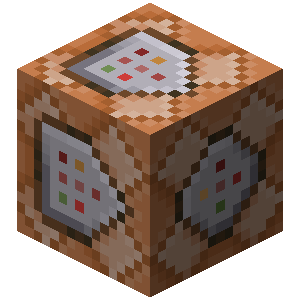 Long command? Use a command block
The chat fits up to 256 characters. For a longer command, get a command block with /give @p command_block (you need Creative Mode), place it and right-click it. Paste the command into the top field, click "Done", put a lever next to the block and switch it on.
Description
In the sign editor you can write the text on each line of a sign, pick its colour, and add a command that runs when a player clicks the sign. The editor builds a /give command that hands you the finished sign. You can configure:
Text colour. In game this is applied with dye. Changing it here recolours the text in the line editor too. Signs are black by default.
Glowing text. Turn this on to make the text glow — the equivalent of a glow ink sac in game.
Command on click. When a player clicks the sign, this command runs as that player.
Sign text. The editor supports:
-
Text formatting: bold, italic, underlined, strikethrough and obfuscated (magic) text. Combine them freely to build your own look.
-
Special characters. Insert the special characters Minecraft supports directly into your text.
-
Minecraft colours and the hex colours added in 1.16. The palette offers three colour models — RGB, HSV and hex. Select some text, pick a colour, and the editor converts it into the form the game expects.
-
Gradients. Add, move and recolour the gradient's key points, or remove the ones you do not need. The text updates as you change the settings, so it is easy to land on the look you want.
-
Keybind. A dynamic element that is replaced with the name of the key bound to the action you choose. It follows each player's own control settings and language.
-
Selector. A dynamic element that is replaced with the entities matching the selector you choose. When several entities match and the selector sets no target limit, their names are joined by a separator you can change.
-
Translatable text. A dynamic element that is replaced with a localised string looked up by key in the game's language files or in a resource pack. You can supply fallback text to use when no translation exists for the key.
-
Preview. Replaces every dynamic element with a plausible value, so you can see the sign roughly as players will.
Other item properties. The editor also exposes the rest of the item's settings — you can enchant the sign, for instance, or give it a custom name through the text editor.
Templates
Save your work as a template to load, reuse or edit later. Templates live in your browser's storage and are completely private — clearing the site's data removes all of them.
Worth knowing
One of the generated commands can be too long to type into chat, which is limited to 256 characters (100 before 1.11). For anything longer, paste the command into a command block and power it with a lever or button. Note that the @s selector does not work in command blocks — swap it for another selector so the command behaves.
How do you put coloured text on a Minecraft sign?
By hand a sign only takes plain text across four lines. Colour, glowing letters, a click action and the text on the back come from the sign's NBT: front_text and back_text, each with its own list of JSON lines and its own glow flag. All of it is handed out with /give or /setblock. The editor above shows both faces of the sign at once, and builds the command as you edit.