
How to play Minecraft with friends without port forwarding or renting a server
Create a lobby in JustLauncher, send the link, and your friends are in your world within a couple of minutes. No public IP, Hamachi or server of your own needed.
 English
Playing with friends in a regular world usually means forwarding a port on your router, installing Hamachi or renting a server. The Co-op mode in JustLauncher removes that step. You create a lobby, send your friends a link, and they join your world straight after you open it to LAN. You don't need a public IP or any router setup.
Any installation works, vanilla or modded. If you got your mods through the launcher, your friends get them installed automatically. This guide is written for JustLauncher 2.4.0.
What you need
- A JustLauncher account. Signing up is free and takes about a minute. Without it the Co-op section stays locked. You and your friends each need one.
- A Minecraft installation. Vanilla, modded or a Modrinth or CurseForge modpack all work. If you don't have a suitable one, the launcher creates it right from the lobby screen.
- The same Minecraft version for everyone. The mod loader and the mods themselves may differ if you let guests join with their own installations.
How to create a lobby
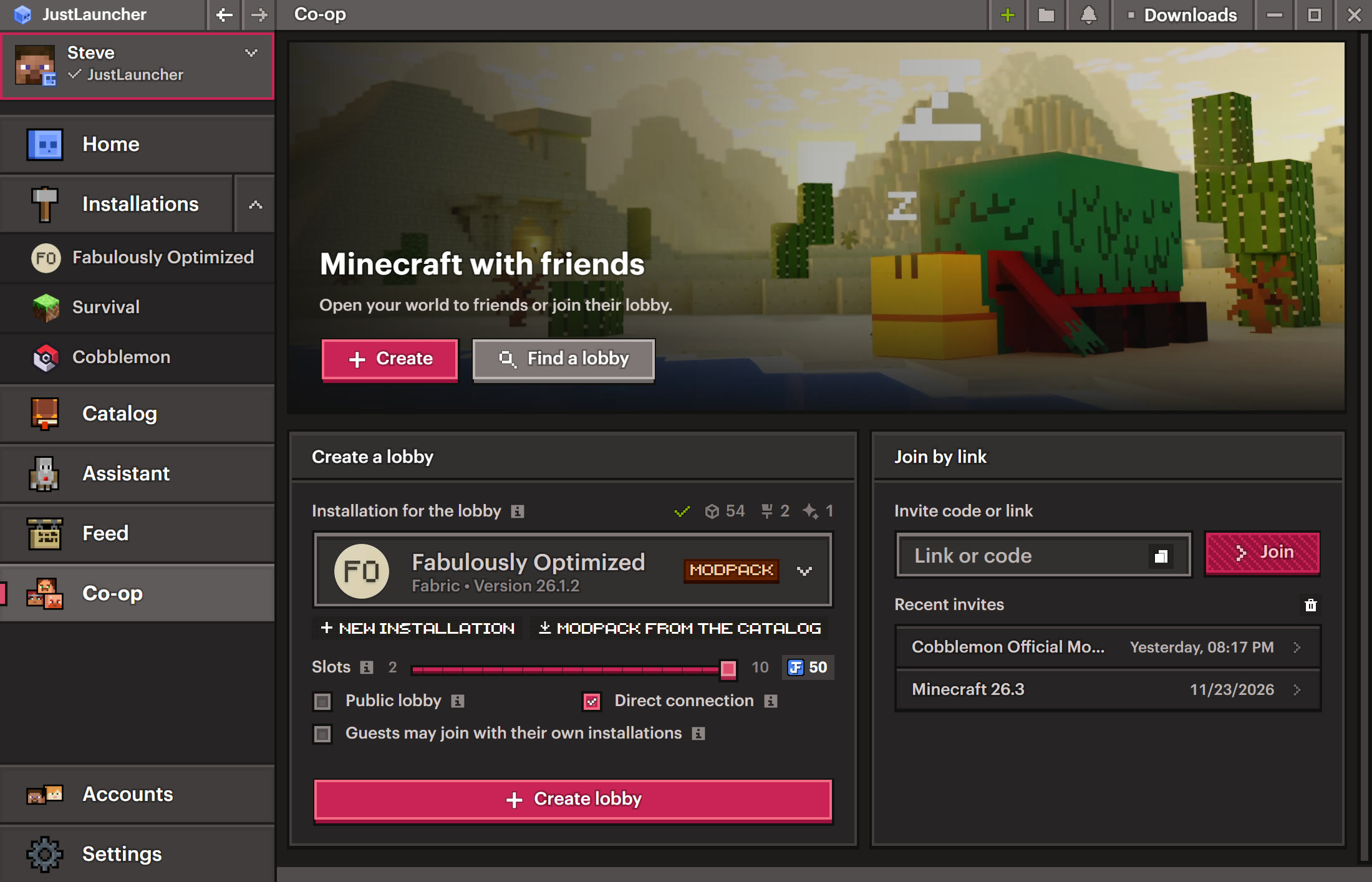
- Open Co-op in the sidebar and pick the Create tab.
- Under "Installation for the lobby", pick an existing installation or make a new one. A new one can be plain Minecraft or a modpack from the Modrinth and CurseForge catalog.
- Choose how many players to let in, from 2 to 10.
- Decide whether guests may join with their own installations. The game version still has to match.
- Click "Create lobby".
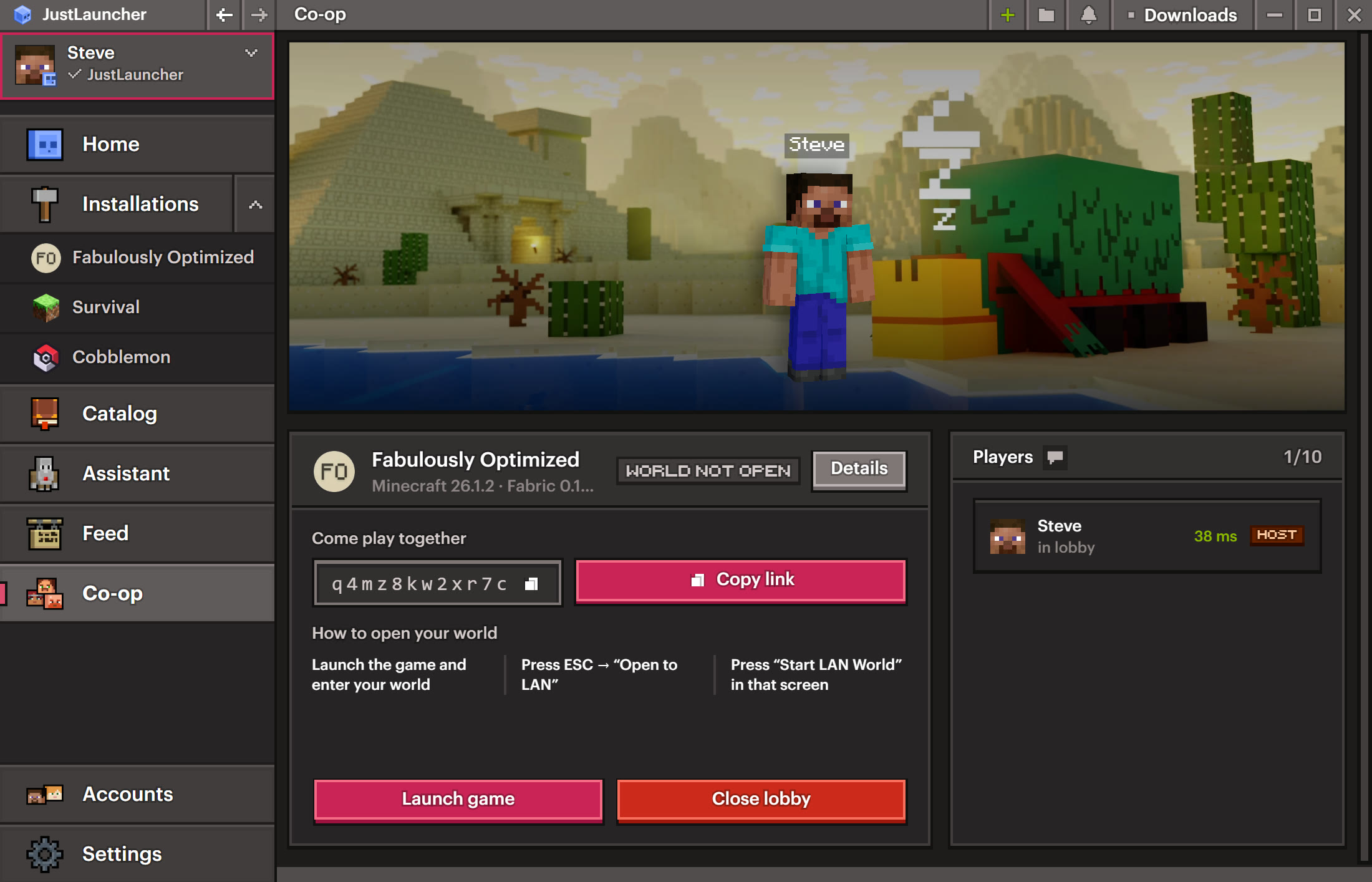
The lobby shows an invite code and a "Copy link" button. Send your friends either one.
A lobby doesn't open your world by itself, and until it does, "World not open" shows next to the build name. Click "Launch game", enter your world, then press Esc and choose "Open to LAN". The launcher lists these three steps right in the lobby. Once you confirm in the LAN screen, "World not open" turns into the route, such as "Direct", and your friends can join.
If you want anyone to be able to join, not only people with your link, turn on "Public lobby". It then shows up for other players on the "Find a lobby" tab.
How to join a friend
- Open the invite link. The launcher opens on the Co-op page already inside the lobby. If the link doesn't open, go to Co-op, paste the link or code under "Join by link" and click "Join".
- Under "Installation to play on", pick an installation. Next to it you see how many of the host's mods it's missing, and those get installed automatically. You can also pick a new installation. The launcher then builds one for the lobby and leaves your own setups alone.
- Click "Install & Play", or "Play" if there's nothing to download.
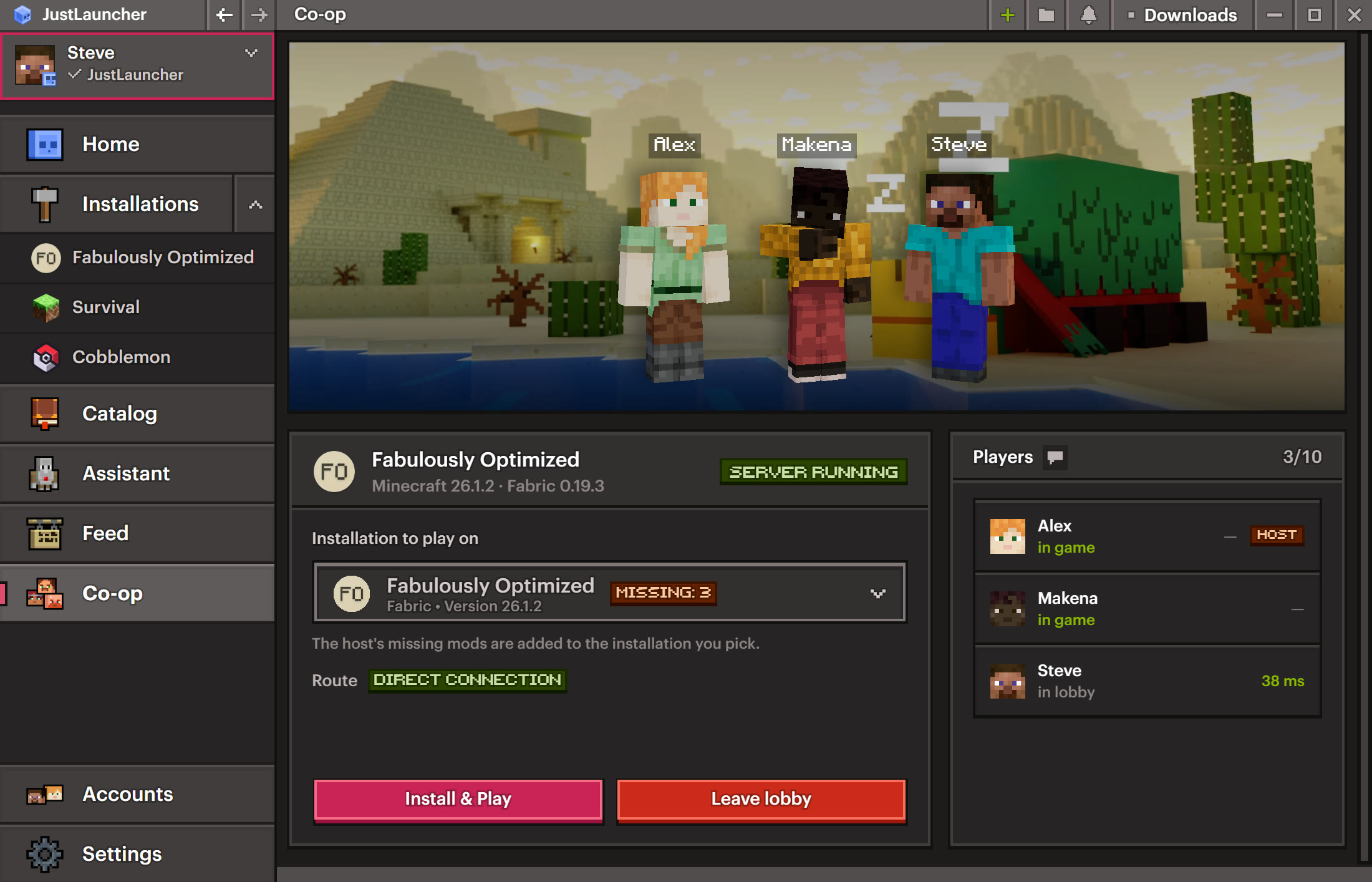
If the host has already opened the world, the game connects to it right away. If not, the launcher just starts the game, and the lobby's server appears in the Multiplayer list.
Any account can be selected in the launcher. Co-op always starts the game with your JustLauncher account.
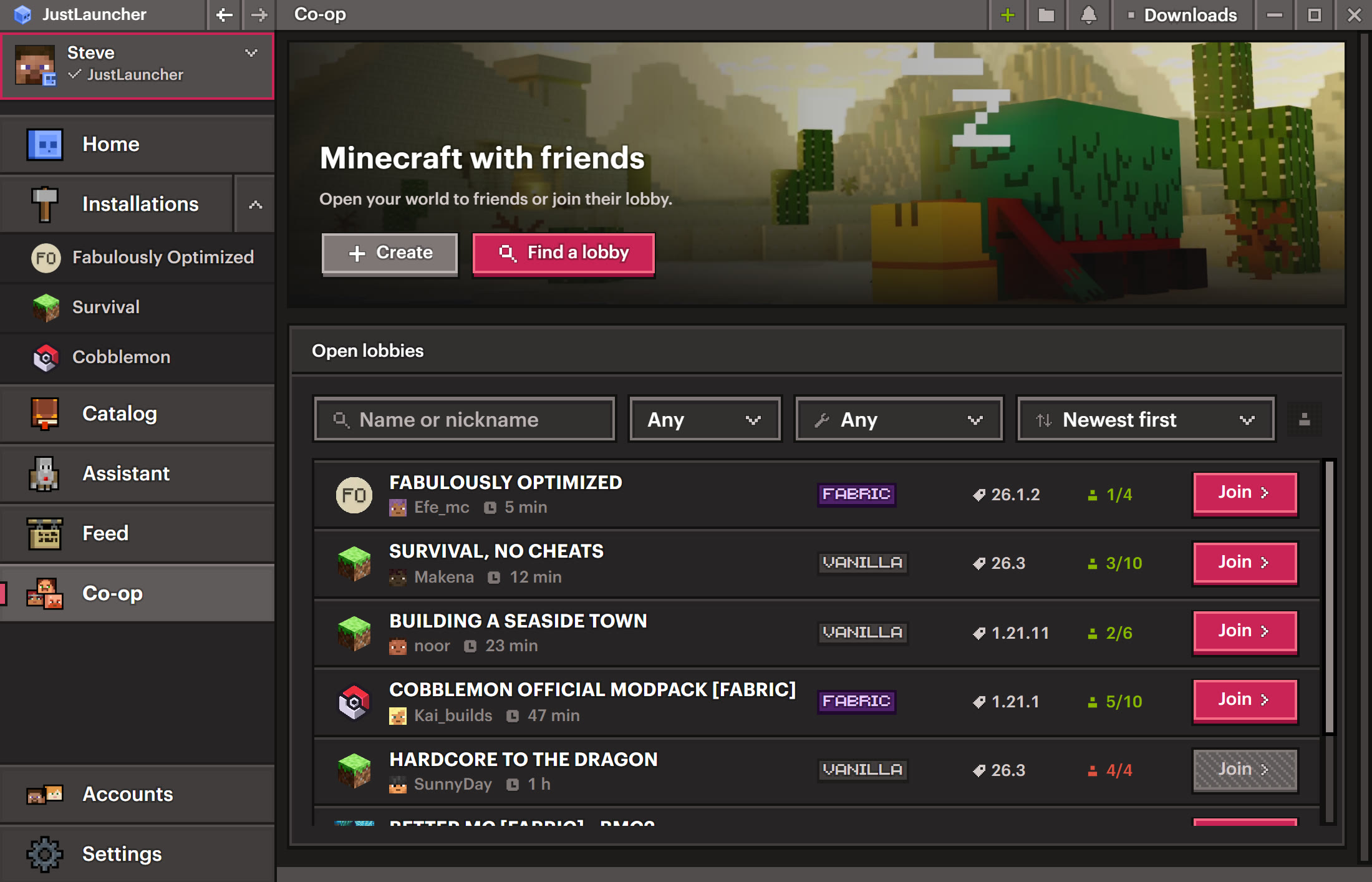
You can also find open lobbies without a link. The "Find a lobby" tab has search by name or nickname, version and loader filters, a "Has room" toggle and sorting by "Newest first", "Most players" or "Most room".
Mods and modpacks
Mods you downloaded through the launcher go to your guests automatically. Mods you dropped into the folder by hand, and their configs, stay behind, because the launcher doesn't know where to download them from. The launcher lists such mods before you create the lobby, and you'll have to send those files to your friends yourself.
If a guest has a different Minecraft version, they can't join. If only the loader, the mods or the modpack differ, the launcher warns them but lets them in.
If something doesn't work
- "A JustLauncher account is required" or "Sign in to your JustLauncher account". Sign in to your JustLauncher account. A Minecraft account won't do.
- "Lobby not found" or "This lobby is already closed". The host closed the lobby. Ask for a new link.
- "This lobby is full". All spots are taken. The host can raise the limit when creating a new lobby.
- "This lobby runs a different Minecraft version". Create or pick an installation with the host's version.
- The lobby exists but friends can't join. Check that you opened the world to LAN. While the host sees "World not open" and guests see "Lobby created", nobody can join.
- "The server closed the lobby". A lobby lives for 8 hours at most. The server also closes it if the host's launcher has been offline for about ten minutes. Create a new lobby to keep playing.
If the connection drops for a second, the launcher reconnects by itself, no need to click anything.
Chat and lobby controls
The player list shows who is still in the lobby and who is already in the game. The host can remove a player with the "Kick" cross in their row. The chat opens from the icon next to the Players heading, and a red dot on it means unread messages.
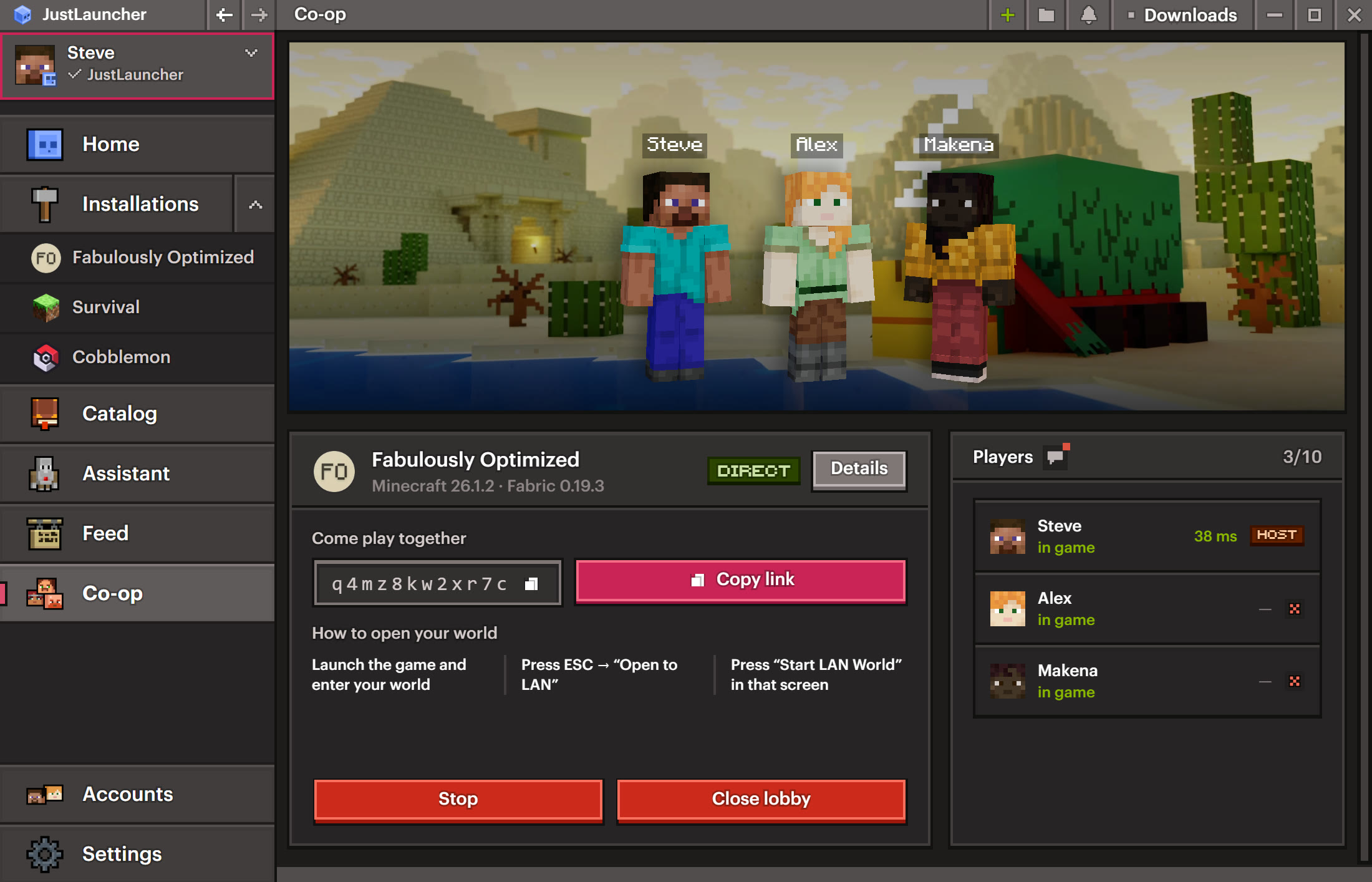
When you're done playing, click "Close lobby". Guests leave with "Leave lobby".
FAQ
How many players can I invite? Up to 10 people, you included.
Is it free? Yes, all you need is a free JustLauncher account.
Can I play in a vanilla world? Yes. Any installation works, vanilla too.
Do I need a Minecraft license? No. Co-op starts the game with your JustLauncher account, so neither the host nor the guests need a license.
What happens if the host leaves the game? Friends get disconnected, but the lobby stays. The host starts the game again and opens the world to LAN, and everyone joins back with the same link. If the host closes the launcher, the lobby closes right away.
How long does a lobby last? Up to 8 hours. After that create a new one, your world stays where it is.
Download JustLauncher
Discussion
No comments yet
Be the first to leave one