
Minecraft won't start or keeps crashing. How to fix the common errors
We went through the errors that most often stop Minecraft from starting for JustLauncher players and wrote down what to do about each one.
 English
We looked at the reports players sent from the launcher over the last month. Almost every problem comes down to a few causes. The game files don't download, mods don't fit each other or the game version, Java doesn't install, or there isn't enough memory or disk space. This guide is written for JustLauncher 2.4.0.
What the launcher shows when the game fails
If the game couldn't start, the launcher opens a "Launch error" window. If it crashed while you were playing, the window is called "Game crash". Under the short description the launcher shows a few lines from the game log. They are technical, but they are what tells you the cause. Each error in this article comes with such lines so you can recognize yours.
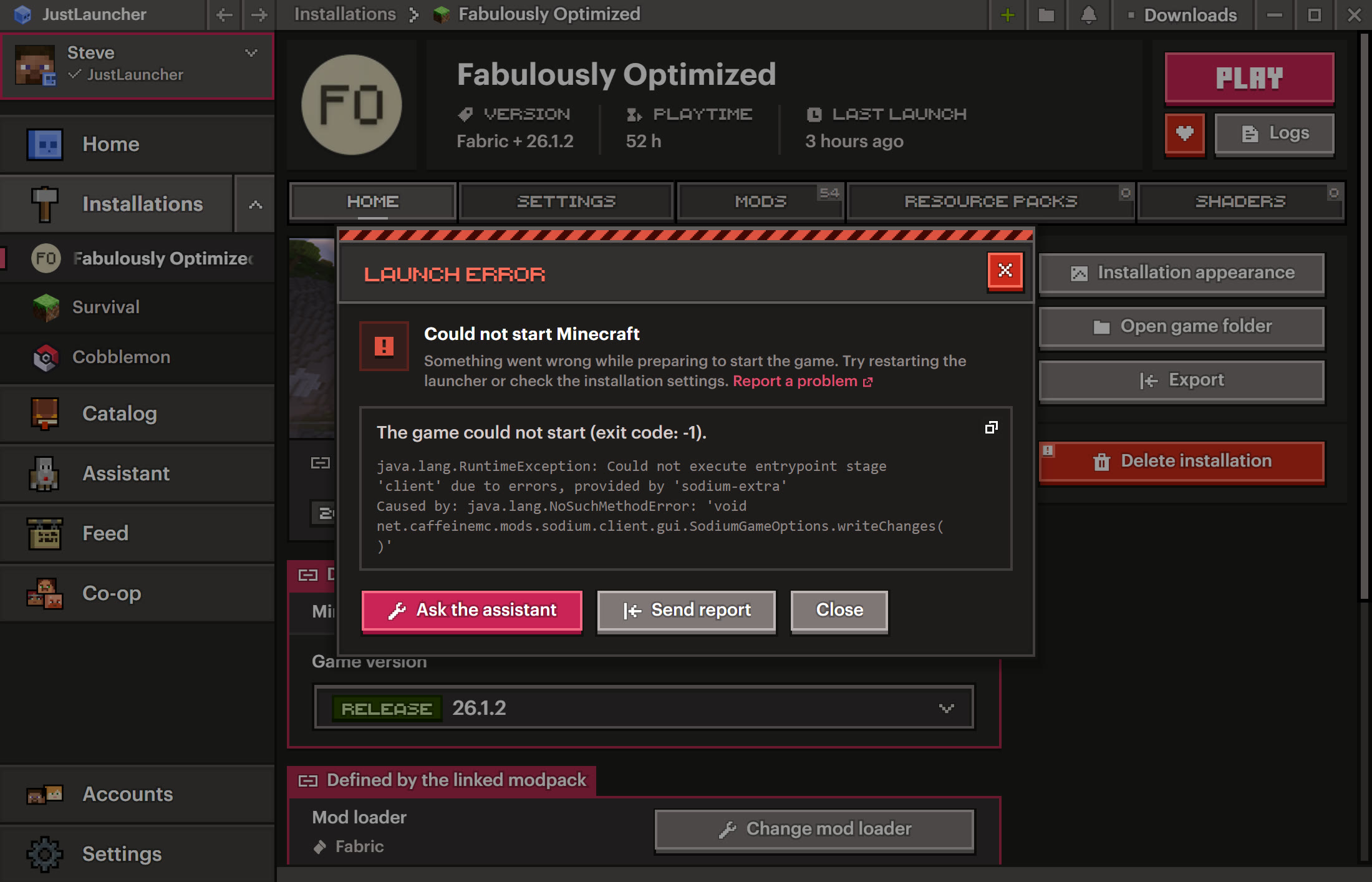
Besides "Close", the window has three more buttons.
- The copy icon in the corner of the error box copies the whole error text. Handy if you're going to ask for help.
- "Ask the assistant" opens a chat with the AI assistant. It reads the log and the crash report itself and suggests a fix. The button shows up when you're signed in to a JustLauncher account.
- "Send report" sends us the full launch log, the installation settings and your system details. Reports like these are how we found the errors in this article.
Start with the simple steps
- Restart the launcher and try again. Before every launch the launcher checks the game files and downloads only the ones that are missing.
- Check your internet connection. If a VPN is on, try without it, and if it's off, try with it.
- Don't launch the same installation twice and don't run two launchers at once.
- Restart your computer if the error keeps coming back. That releases files held by a stuck process.
Files don't download
This is the most common reason the game won't start. Usually the launcher says "Could not get the list of Minecraft versions" or "Could not launch the game", and the lines below show something like this.
- "error sending request for url"
- "request to https://… failed after 2 attempts"
- "1 file(s) failed to download or verify"
- "Forge installer download failed" or "NeoForge installer download failed"
It means the launcher couldn't reach the server with the files. Most often the connection is broken by a VPN, a proxy, an antivirus or the ISP itself.
- Wait a couple of minutes and launch again. If the main server doesn't answer, the launcher switches to a backup by itself.
- Try a different connection, for example a hotspot from your phone.
- If mods and modpacks download slowly or not at all, open Settings → "Network & API" and turn on "Use JustLauncher proxy". The launcher will then fetch them through our servers instead of straight from Modrinth and CurseForge.
- If you use a proxy, check it in the same "Network & API" section.
"Access denied" while installing Java
You don't need to install Java yourself. The launcher downloads the Java that the chosen game version needs. Sometimes this fails with an error that contains "failed to store", a path to "ucrtbase.dll" and "Access is denied. (os error 5)".
It mostly happens on recent builds of Windows 11. Windows or an antivirus won't let the launcher write one of the Java files, and the install stops. We've already fixed this in the launcher, and the fix comes with the next update. Until then, try this.
- Close the launcher.
- Add the "%APPDATA%\.minecraft" folder to your antivirus exclusions.
- Restart your computer and launch the game again.
If the launcher says the Java it downloaded is damaged, click "Reinstall Java" in the error window. The launcher deletes it and downloads it again. If you set your own Java in the settings and it doesn't start, click "Use the bundled Java".
Mod errors
This is the second most common cause. Before every launch the launcher checks the mods in Fabric, Quilt, Forge and NeoForge installations. If a mod is missing another mod or needs a different version of it, you'll see the "Mod problems detected" window.
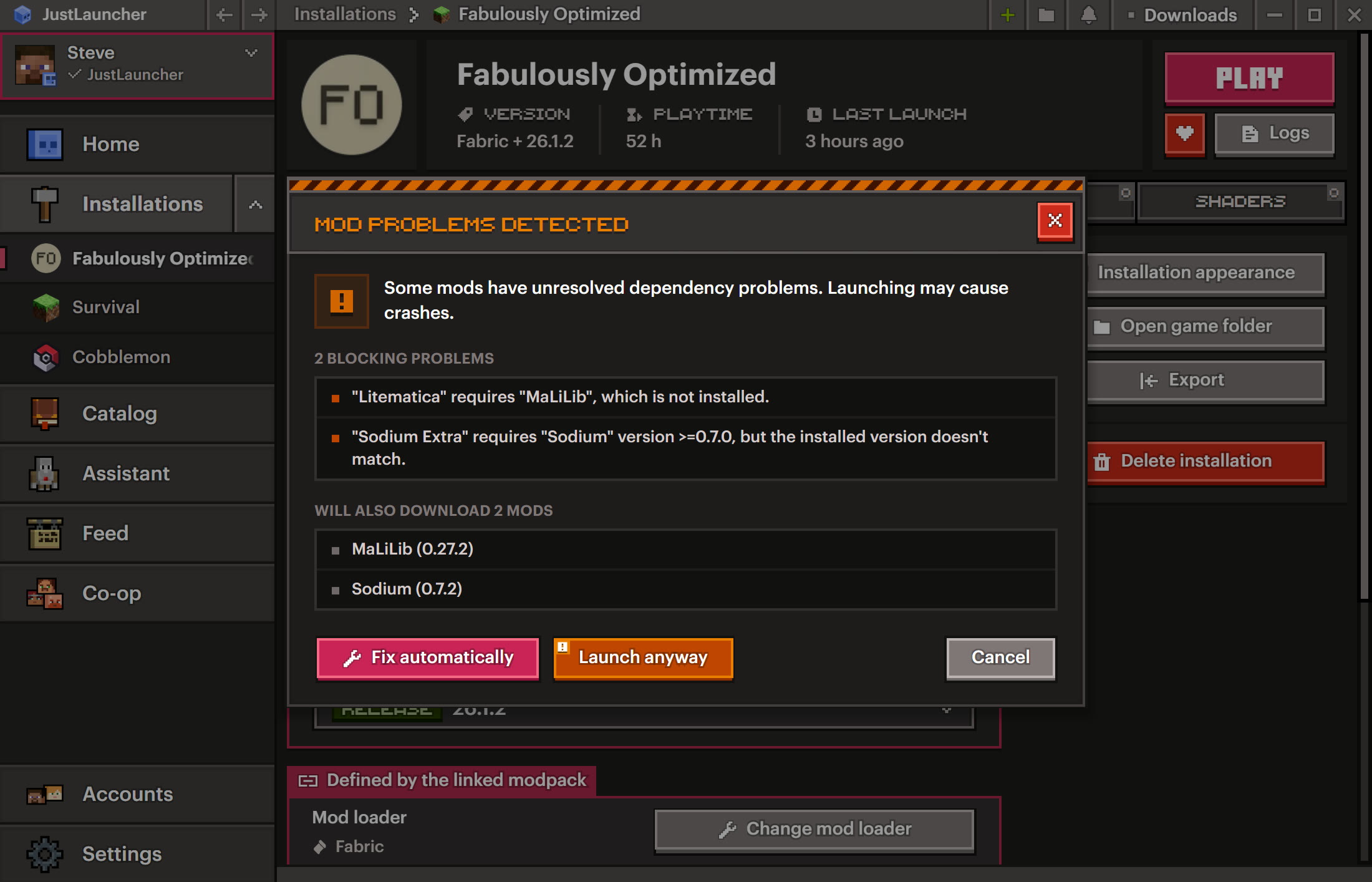
"Fix automatically" turns the right files on or off and downloads the missing mods from Modrinth. If no problems are left, the game starts by itself. "Launch anyway" skips the check, but then the game will most likely crash.
The check doesn't catch everything. If there was no such window and the game still didn't start, look at the lines in the error window.
- "Could not execute entrypoint stage 'client'" or "'main'". One of the mods broke during startup. The mod's name usually follows "provided by" in the same line.
- "NoSuchMethodError", "NoClassDefFoundError" or "ClassNotFoundException". The mod was made for a different version of Minecraft or the loader.
- "Mixin" in the error text, for example "MixinTransformerError". Two mods change the same part of the game and get in each other's way.
- "The mods are incompatible with each other, so the game did not start". The loader found the conflict itself and lists the mods below.
What to do.
- Think back to which mods you added last and turn them off on the installation's Mods tab.
- Check that each mod is made for your game version and your loader. A Forge mod won't work on Fabric, and a mod for 1.20.1 won't work on 1.21.
- Fabric mods almost always need Fabric API.
- If a modpack that was updated recently won't start, the launcher offers to bring back the previous version. Click "Restore".
- If a modpack is completely broken, open its Settings tab and click "Reinstall modpack". Keep in mind that mods you added yourself will be removed.
Not enough memory
If the error lines contain "java.lang.OutOfMemoryError", the game ran out of memory. If they say "Could not reserve enough space for object heap", it's the opposite. You gave the game more than your computer can spare.
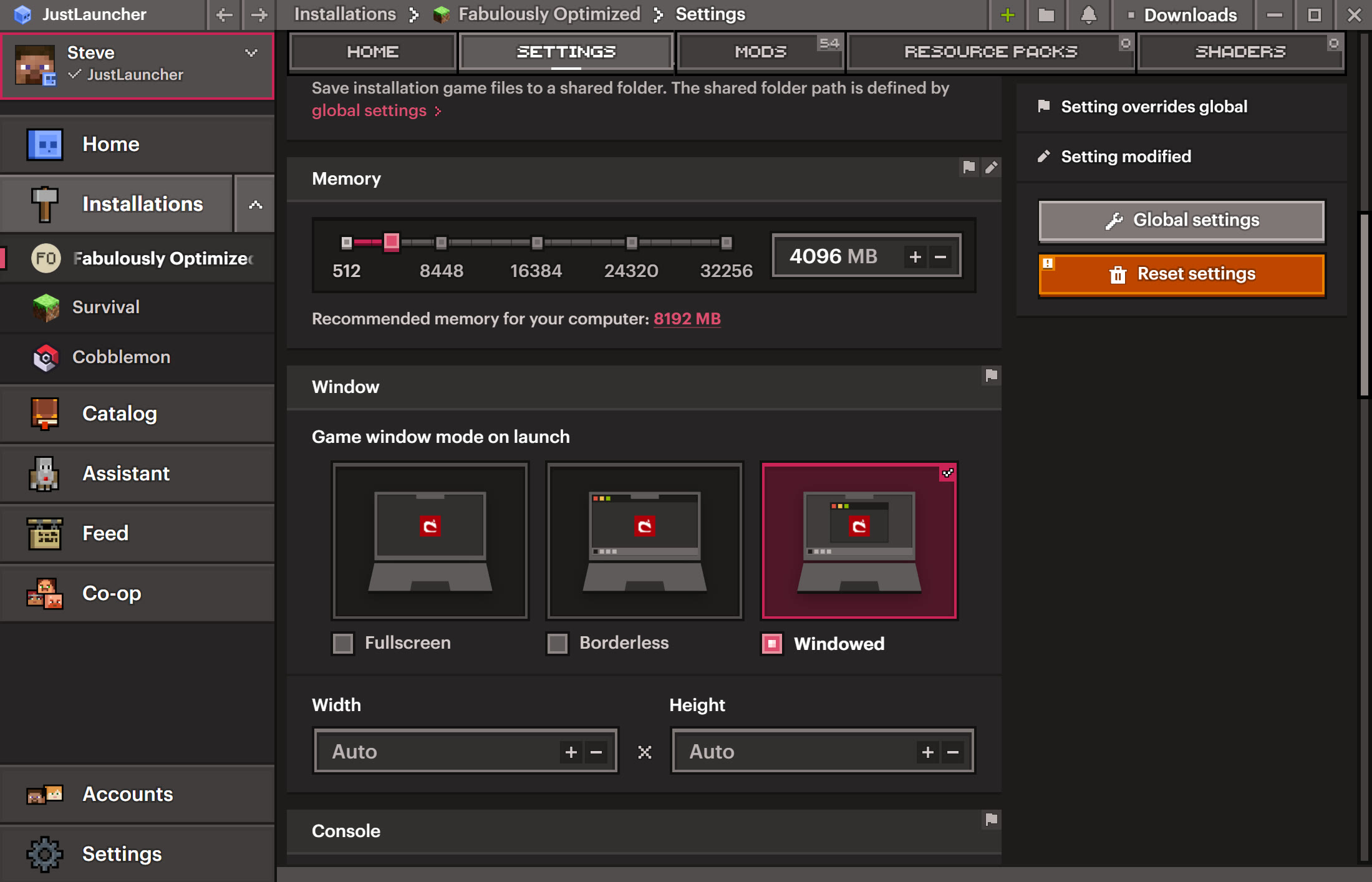
Memory is set on the installation's Settings tab, in the Memory section. Under the slider the launcher shows "Recommended memory for your computer", and you can click that value. Vanilla needs 2–4 GB, and big modpacks do best with 6–8 GB if your computer has it. Going above the recommended value isn't worth it, because your whole computer may slow down.
Low disk space or a busy file
- "Not enough disk space". The launcher tells you how much space it needs and how much is free. Free some up and launch again.
- "The process cannot access the file because it is being used by another process". The file is held by a game that hasn't closed yet, a second launcher or an antivirus. Close the game, wait a minute and try again. If that doesn't help, restart your computer.
Damaged files
Sometimes game files don't download completely. Then the error has lines like these.
- "EOF while parsing a value" or "expected value at line 1"
- "The system cannot find the file specified"
- "Could not find or load main class net.minecraft.launchwrapper.Launch" on old versions with Forge or OptiFine
Open Settings → Data → "Clean data", tick Versions and Libraries and click "Delete selected". Your worlds and mods stay untouched. On the next launch the launcher downloads those files again.
The game crashes while playing
If the game started and crashed later, you'll see the "Game crash" window. Most often the cause is mods, shaders or heavy resource packs.
- Turn off the mods, shaders and resource packs you added last.
- Update your graphics driver from the NVIDIA, AMD or Intel website, especially if the error mentions "OpenGL" or "GLFW".
- Click "Ask the assistant". It reads the crash report and looks for the mod that made the game crash.
If nothing helped
- Click "Send report" in the error window. We read these reports and use them to fix the launcher.
- Open the installation and click "Logs". That's where the game logs are. If the game is still running, the console opens instead.
- The console has an "Upload" button. It uploads the log online and copies a link you can send to whoever is helping you.
- The "Report a problem" link in the error window leads to our help page, where you can write to us.
Download JustLauncher
Discussion
No comments yet
Be the first to leave one