Global Settings
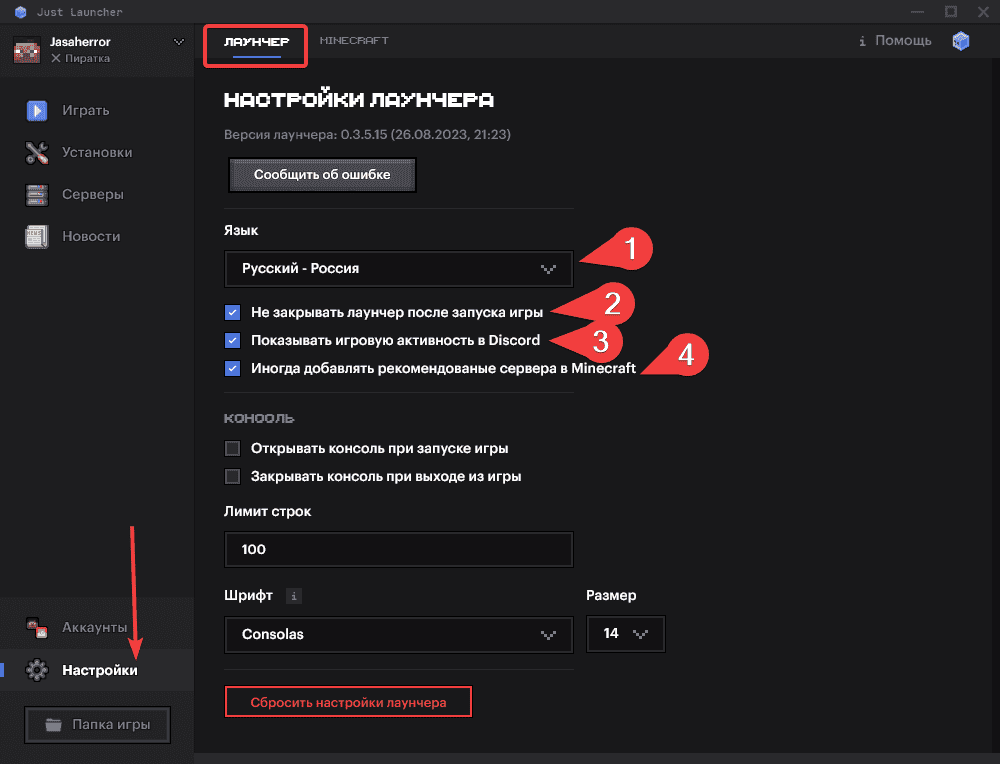
A complete guide to every global setting for the launcher and Minecraft
Introduction
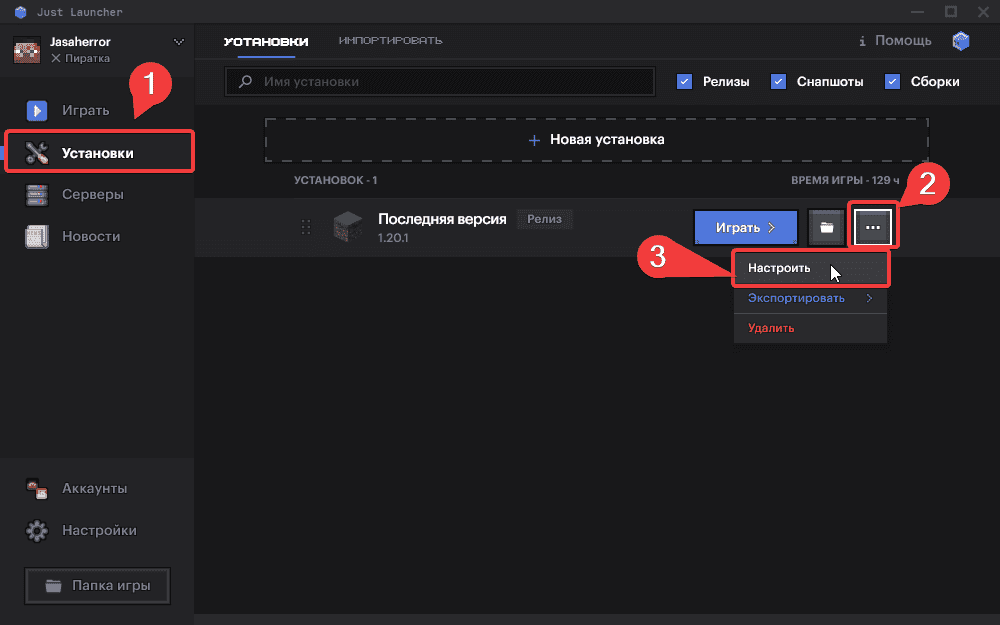
Changing any of the settings covered in this guide affects all new installations you create. If you want to change settings for a specific installation, including ones you've already installed, open the Installations section, select the installation you need, click the three dots, and choose Configure.
JustLauncher Settings
On the launcher's home screen, or in other sections, you'll find a Settings button in the bottom-right corner. Click it to open the launcher settings. Here you can see the launcher's current version and report a bug.
General settings
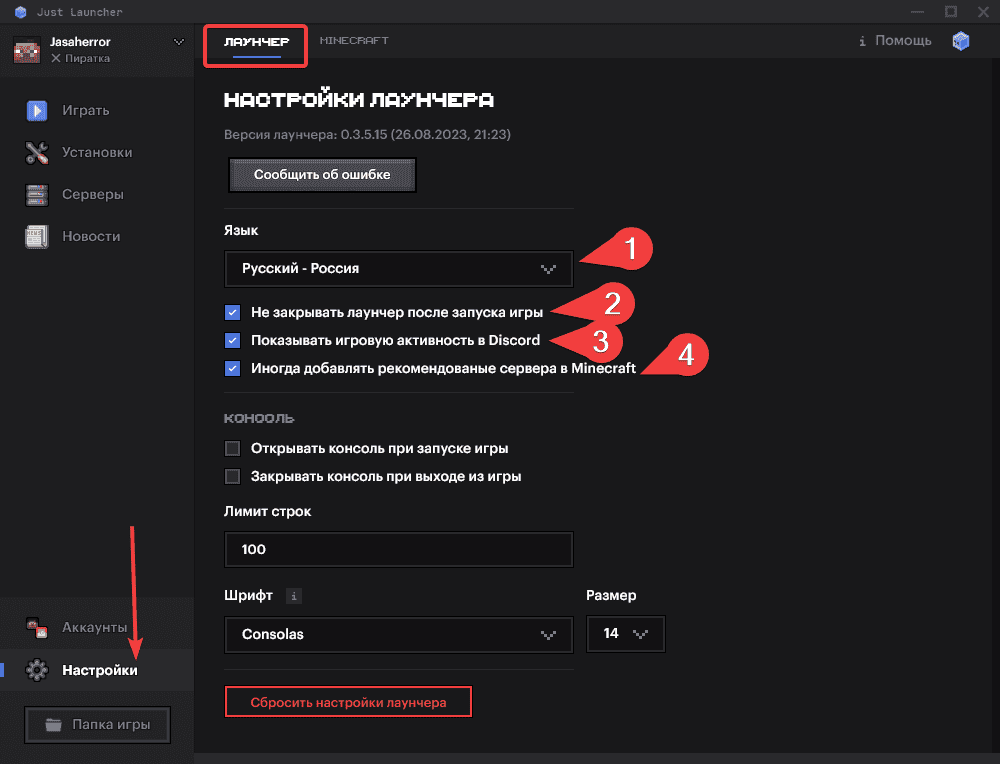
- Language. Three languages are currently available — Russian, English, and Ukrainian. Choosing a language will restart the launcher.
- Keep the launcher open after starting the game. Checking this box keeps the launcher open once the game starts; this has a small effect on performance.
- Show Discord game activity. This checkbox controls whether your game activity is shown on Discord — it looks roughly like this
- Occasionally add recommended Minecraft servers. Unchecking this stops recommended servers from being added to your multiplayer list.

Console
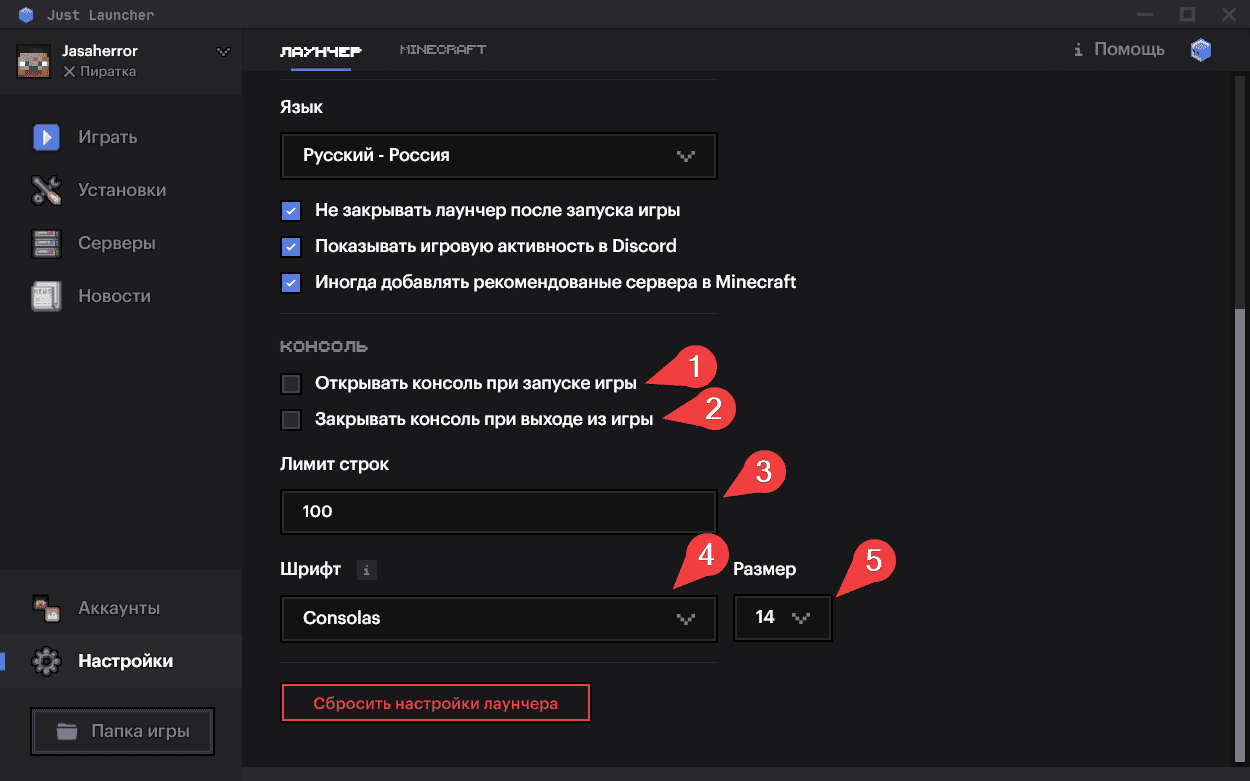
- Open console. With this setting on, the console opens automatically when the game starts. If you launch two different installations, two separate consoles will open.
- Close console. When enabled, the console closes automatically once you exit Minecraft, even if the game crashed.
- Line limit. Sets a limit on the number of lines shown in the console; once that limit is exceeded, older lines are cleared.
- Font. Only one console font is available right now; more fonts will be added in the future.
- Font size. Adjust the console font size from 8 to 26.
Minecraft settings
These settings are global and apply by default to all Minecraft installations. You can override them under Installations → Installation settings.
Versions
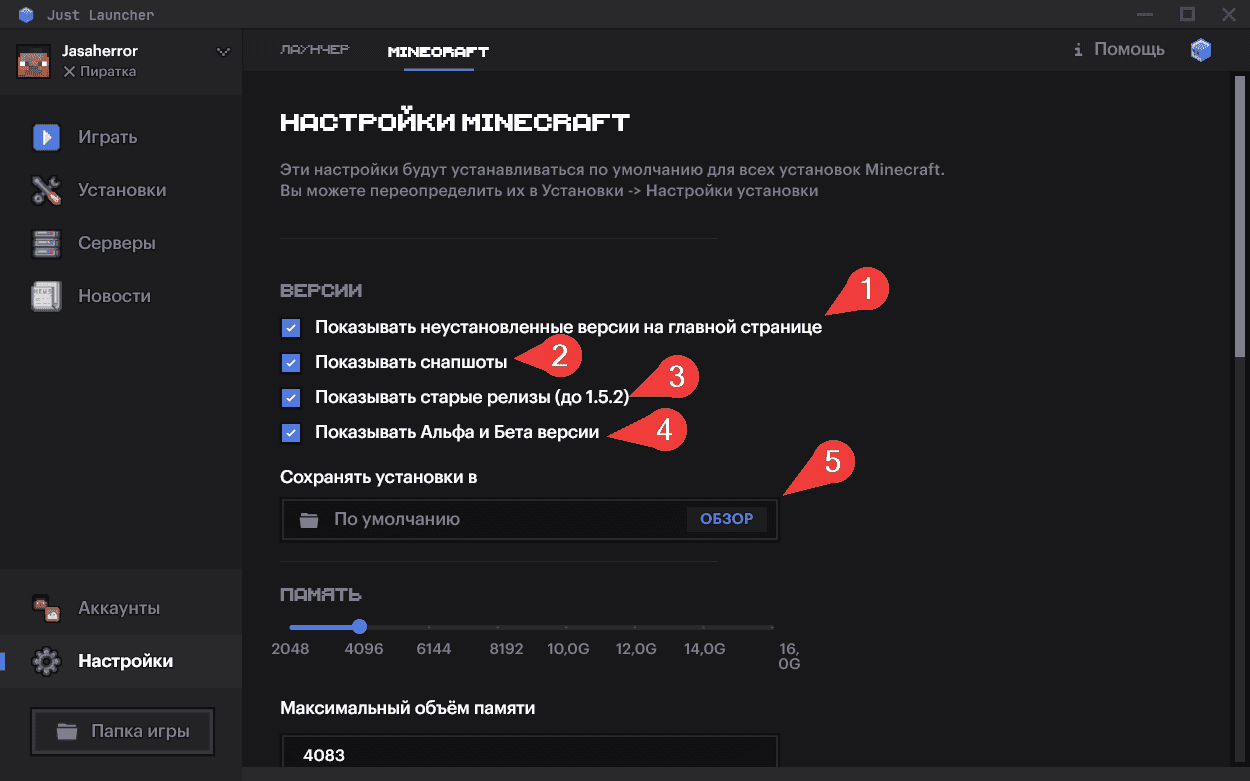
- Show uninstalled versions on the home page. When enabled, every uninstalled version that exists will be shown on the home page.
- Show snapshots. When enabled, all snapshots for every Minecraft version are shown, both on the home page and in Installations.
- Show old releases (before 1.5.2). When enabled, all old Minecraft versions before 1.5.2 are shown, both on the home page and in Installations.
- Show Alpha and Beta versions. When enabled, all Alpha and Beta versions for every Minecraft version are shown, both on the home page and in Installations.
- Installations folder. Choose the folder where all your installations (versions, modpacks, and more) will be installed, if the default one doesn't suit you.
Memory
RAM matters a lot for Minecraft's performance. We've written about this in more detail here. For now, the short version: more is better, just don't allocate all of it.
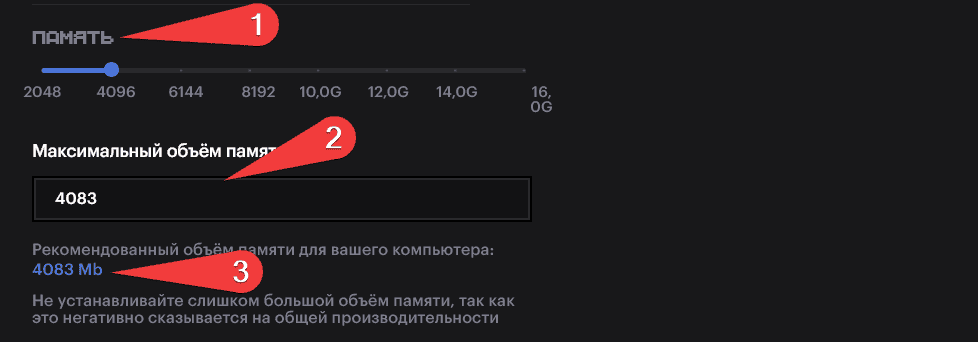
- Memory. Sets the RAM for all new installations you create, using the slider.
- Maximum memory amount. The same as the setting above, but entered as a number.
- Recommended memory amount for your computer. The recommended amount is 1/4 of your total RAM. With this setting, you can comfortably keep a browser with several tabs open, stay on Discord, and run a couple of lightweight programs alongside the game.
Window

- Resolution. Choose a resolution from the preset list.
- Width. The width, meaning the horizontal size of Minecraft's resolution.
- Height. The height of Minecraft's resolution.
Advanced settings (Java, Launch arguments, Server connection)
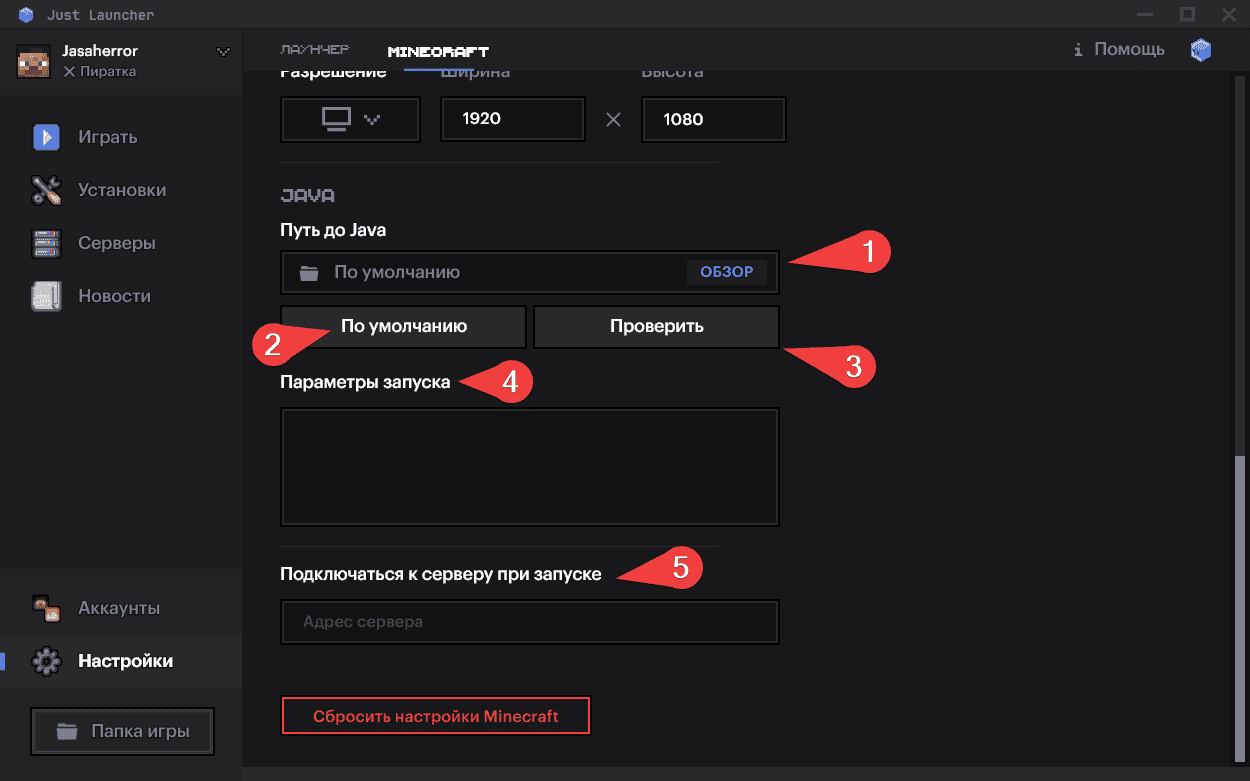
- Browse for Java path. You can manually select the path to Java. Minecraft won't run without Java.
- Default. If you don't know where Java is located on your system, use this option. It works for about 90% of cases.
- Check. This button verifies whether you've entered the correct Java path.
- Launch arguments. In launch arguments, you can specify commands, listed below in the screenshot. This feature isn't very important and is mostly used by advanced users, so it's best left alone if you're not familiar with it.
- Connect to server on launch. A handy setting for joining a server automatically as soon as the game starts.